Workspaces & roles
Personal vs team workspaces, the four roles, seats and invitations, transferring ownership, and what happens to a team workspace when billing fails.
A workspace is the top-level container for everything in Spendrein — your subscriptions, contracts, audits, saved views, and activity all live inside one. Every account starts with a personal workspace, just for you. On the Business plan you can promote that same workspace into a team workspace and invite other people to work in it alongside you.
Promotion happens in place: there's no second workspace to migrate to. The data you already have stays exactly where it is — the workspace simply gains a higher seat limit and the ability to hold more than one person.
One workspace, one set of data
Spend, verdicts, and contracts are always scoped to the current workspace. Switching between a personal and a team workspace switches the data you see — nothing is shared across the boundary.
Personal vs team workspace
| Personal workspace | Team workspace | |
|---|---|---|
| Who's in it | Just you | You plus invited people |
| Seat limit | Always 1 | Defaults to 5 on Business |
| Roles | You are the Owner | Owner, Admin, Member, Viewer |
| How you get one | Created with your account | Promote a personal workspace (Business plan) |
Promotion lives in Settings → Workspace. Once promoted, the workspace keeps its name and history, and you — the person who promoted it — remain its Owner.
The four roles
Every person in a team workspace holds exactly one role. The role decides what they can do, from full control down to read-only.
- Owner — exactly one per workspace. Holds billing, can rename, delete, or transfer the workspace, and can invite a person at any role. Only the Owner manages seats and billing.
- Admin — can invite Admins, Members, and Viewers; can remove Members and Viewers; can edit workspace data and view the member list. An Admin cannot remove or demote another Admin, transfer ownership, or change billing.
- Member — can read and edit workspace data and upload files. No management of people, billing, or the workspace itself.
- Viewer — read-only. Sees the data but changes nothing.
Capability matrix
This table mirrors the permission rules Spendrein enforces in the application — it's not a summary, it's the rule.
| Capability | Owner | Admin | Member | Viewer |
|---|---|---|---|---|
| Read workspace data | ✓ | ✓ | ✓ | ✓ |
| Edit data, upload files | ✓ | ✓ | ✓ | — |
| View the member list | ✓ | ✓ | — | — |
| Invite a Member or Viewer | ✓ | ✓ | — | — |
| Invite an Admin | ✓ | ✓ | — | — |
| Remove a Member or Viewer | ✓ | ✓ | — | — |
| Remove an Admin | ✓ | — | — | — |
| Change a Member's role | ✓ | ✓ | — | — |
| View the activity log | ✓ | ✓ | — | — |
| Manage the monthly budget | ✓ | ✓ | — | — |
| Rename or delete the workspace | ✓ | — | — | — |
| Manage billing and seats | ✓ | — | — | — |
| Transfer ownership | ✓ | — | — | — |
| Leave the workspace | ✓¹ | ✓ | ✓ | ✓ |
¹ The Owner can't just walk out
An Owner can only leave once ownership has been transferred to someone else — a workspace must always have exactly one Owner.
Invitations and seats
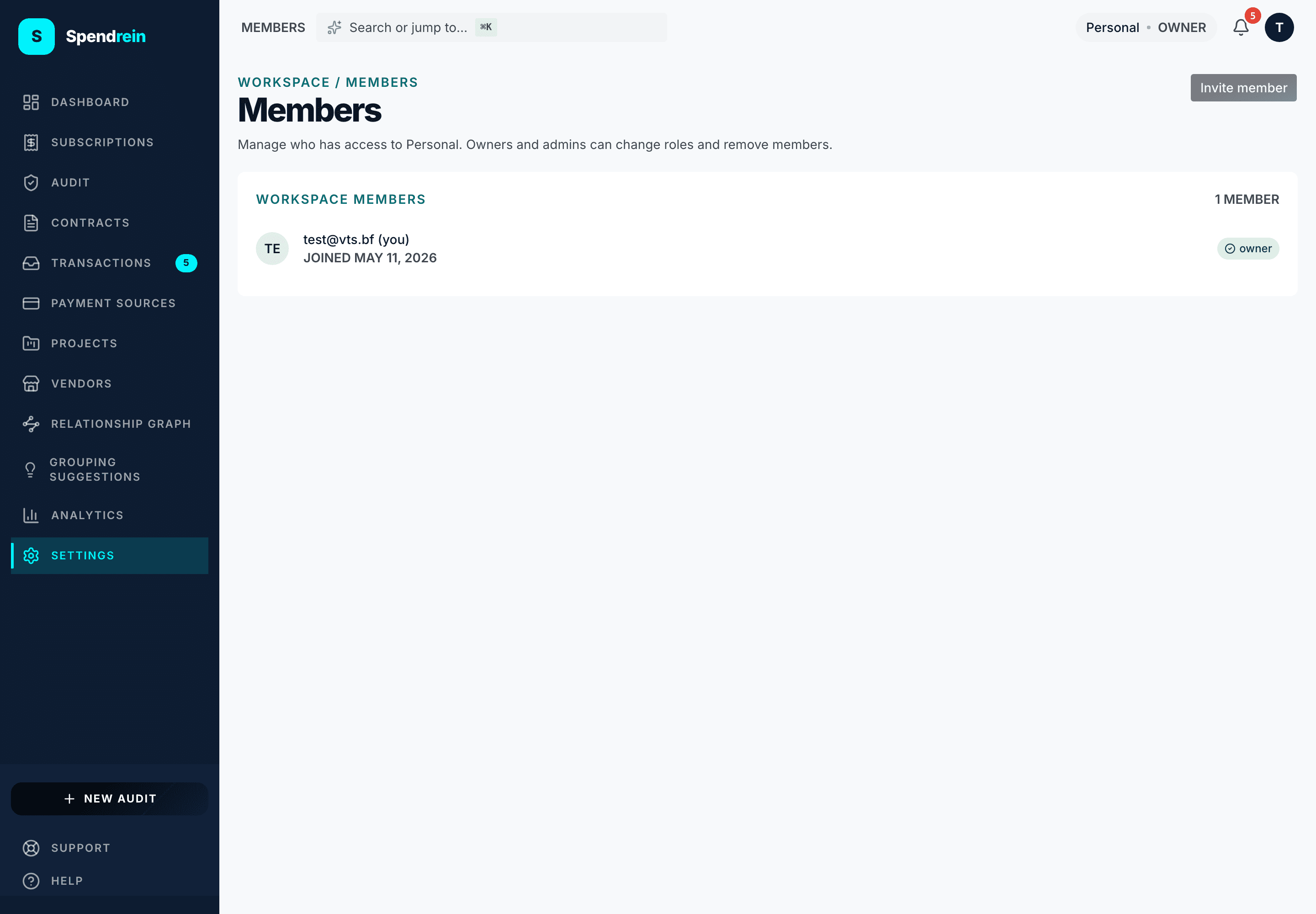
You add people by sending an invitation — a pending entry that holds a single-use token. Until the recipient accepts, the invitation sits in the member list as pending, and it already counts toward your seat usage.
The seat limit caps the total of everyone who occupies a seat:
Owner + Admins + Members + Viewers + pending invitations
A team workspace on Business starts with a seat limit of 5, and the Owner can raise it (up to 20) from the seats panel in billing. When you're at the limit, sending another invitation is blocked until a seat frees up — either someone leaves, an invitation is revoked, or the Owner raises the limit.
Always a noun
An invitation is the record you create and the recipient accepts. It expires if unaccepted and can be resent or revoked by an Owner or Admin from the member list.
Transferring ownership
Because there's exactly one Owner, handing the workspace to someone else is a deliberate, Owner-only action under Settings → Workspace → Transfer. The current Owner picks an existing member to receive ownership. When the transfer completes, the new person becomes Owner — billing, deletion rights, and the seat controls move with the role — and the previous Owner drops to Admin.
Transferring is the prerequisite for an Owner who wants to leave: transfer first, then leave as an Admin.
When billing fails
Billing applies to team workspaces (a personal workspace has nothing to bill). If a payment fails, the workspace moves through a defined lifecycle rather than disappearing. See billing for how charges and the Business plan work.
| Stage | Status | What it means | How long |
|---|---|---|---|
| Grace period | grace | Everyone except the Owner becomes read-only. The Owner can still fix the payment method to restore full access. | 14 days |
| Archived | archived | Only the Owner can read, export, and delete. Everyone else is locked out. | 30 days |
| Soft-deleted | soft_deleted | The workspace is scheduled for permanent deletion. The Owner can still restore it. | 30 days |
- Grace period is the warning window. The data is intact; non-Owners just can't edit. Restore billing during these 14 days and the workspace returns to normal for everyone.
- Archived is the post-grace lockdown. The Owner keeps read, export, and delete access so nothing of value is stranded, but the workspace is no longer a working space for the rest of the team.
- Soft-deleted is the last reversible stage. The Owner can restore the workspace any time within the 30-day window; after that it's hard- deleted and gone.
Restoring is the Owner's call
At every stage before the final hard delete, the Owner can recover the workspace — by fixing billing during the grace period, or by restoring a soft-deleted workspace before its window closes.
Where to find this
- Settings → Workspace → Members — the member list, roles, invitations, and seat usage.
- Settings → Workspace → Transfer — hand ownership to another member.
- Settings → Workspace → Activity — the log of who did what, visible to Owners and Admins.
Cancellations
How Spendrein tracks a cancellation — the public reference, the contract email drafted for your own mail account, and the bank-feed watchdog. What we do, and what we don't.
Plans & billing
The Free, Operator, and Business tiers, what each one unlocks, how to upgrade, downgrade, or cancel, and where to find your invoices.