Projects
Cost buckets that roll up spend across subscriptions, contracts, transactions, and vendors — so you can see what a client, product line, or initiative actually costs.
A project is a cost bucket. It groups spend from across your workspace — subscriptions, contracts, transactions, and vendors — so you can answer a question your dashboard can't on its own: what does this client engagement, product line, or initiative actually cost each month?
You allocate entities to a project, and Spendrein rolls up the monthly and annualized cost of everything in it. Projects never change the underlying subscriptions or contracts — they're a lens for grouping and reporting, not an operational change.
What a project groups
Allocate subscriptions and contracts as the primary building blocks; you can also pin individual transactions and vendors. Each allocation contributes its cost to the project's rolled-up total.
Creating a project
Use New project and give it a name (unique within the workspace). You can optionally set a description, a budget (amount + currency), and start/end dates. Once it exists, open it to start allocating spend.
Each project moves through three states:
| Status | What it means |
|---|---|
| Active | The default — shown in your projects list. |
| Completed | A lifecycle marker for work that's wrapped up. |
| Archived | Hidden from the default list. A soft, reversible way to set a project aside. |
Allocating spend
From a project, pick the subscriptions and contracts that belong to it. For each allocation you choose how its cost maps to the project:
- Full — the entity's whole monthly cost counts toward this project.
- Percentage — a share of it (e.g. 40% of a shared tool).
- Fixed amount — a flat figure per month.
Allocation picker shows up to 100 at a time
When you're choosing what to allocate, the picker shows up to 100 candidate entities of each type. In a large workspace, type to narrow the list to what you're looking for.
Reading the rollup
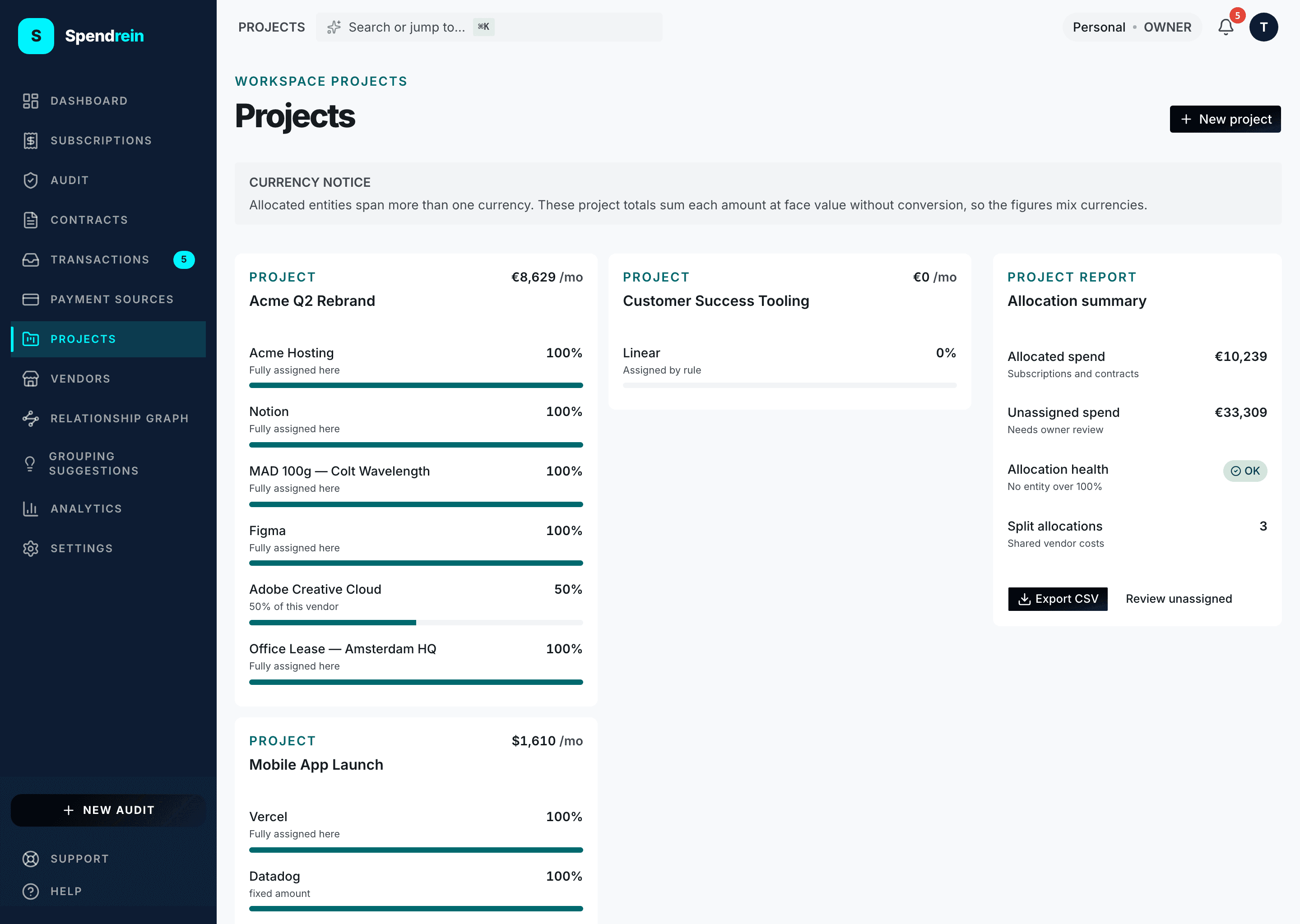
Each project card shows its monthly cost and the entities allocated to it, with a bar per allocation. The sidebar summarizes allocated vs. unassigned spend across all projects.
Totals are summed at face value
A project total is the sum of its allocations in each entity's own currency — Spendrein does not convert between currencies here. If you allocate spend in more than one currency, the page shows a notice that the total mixes currencies, so you're never misled by a blended figure.
The unassigned review panel
Below your projects, the Unassigned panel lists everything not yet in any project, with the total monthly spend it represents and a "needs owner review" prompt. It's filterable, so you can work through the backlog and make sure nothing important is sitting outside your cost buckets.
Exporting
Projects export to CSV — both a per-project cost report and a workspace-wide allocation report — so you can take the numbers into a spreadsheet or hand them to finance.
Who can do what
| Capability | Owner | Admin | Member | Viewer |
|---|---|---|---|---|
| View projects + export | ✓ | ✓ | ✓ | ✓ |
| Create or edit a project | ✓ | ✓ | ✓ | — |
| Allocate / unallocate spend | ✓ | ✓ | ✓ | — |
| Archive or delete a project | ✓ | ✓ | — | — |
Members can build projects and manage allocations; archiving and permanent deletion are reserved for Owners and Admins.
Archive is logged; delete is permanent
Archiving a project records an activity-log entry and can be undone. Deleting permanently removes the project and its allocations — the linked subscriptions and contracts themselves are untouched — and cannot be undone.
Vendors
The merchants you pay, as named entities — how vendors are created, categorized, and kept tidy across subscriptions, contracts, and transactions.
Relationship graph
An interactive canvas of how your subscriptions, contracts, transactions, vendors, payment sources, and projects connect — and how to read, build, and confirm those links.