Your subscriptions
How to read the subscriptions table — the statuses, the AI verdicts, filtering, adding a subscription by hand, the detail page, and what "marked cancelled" really does.
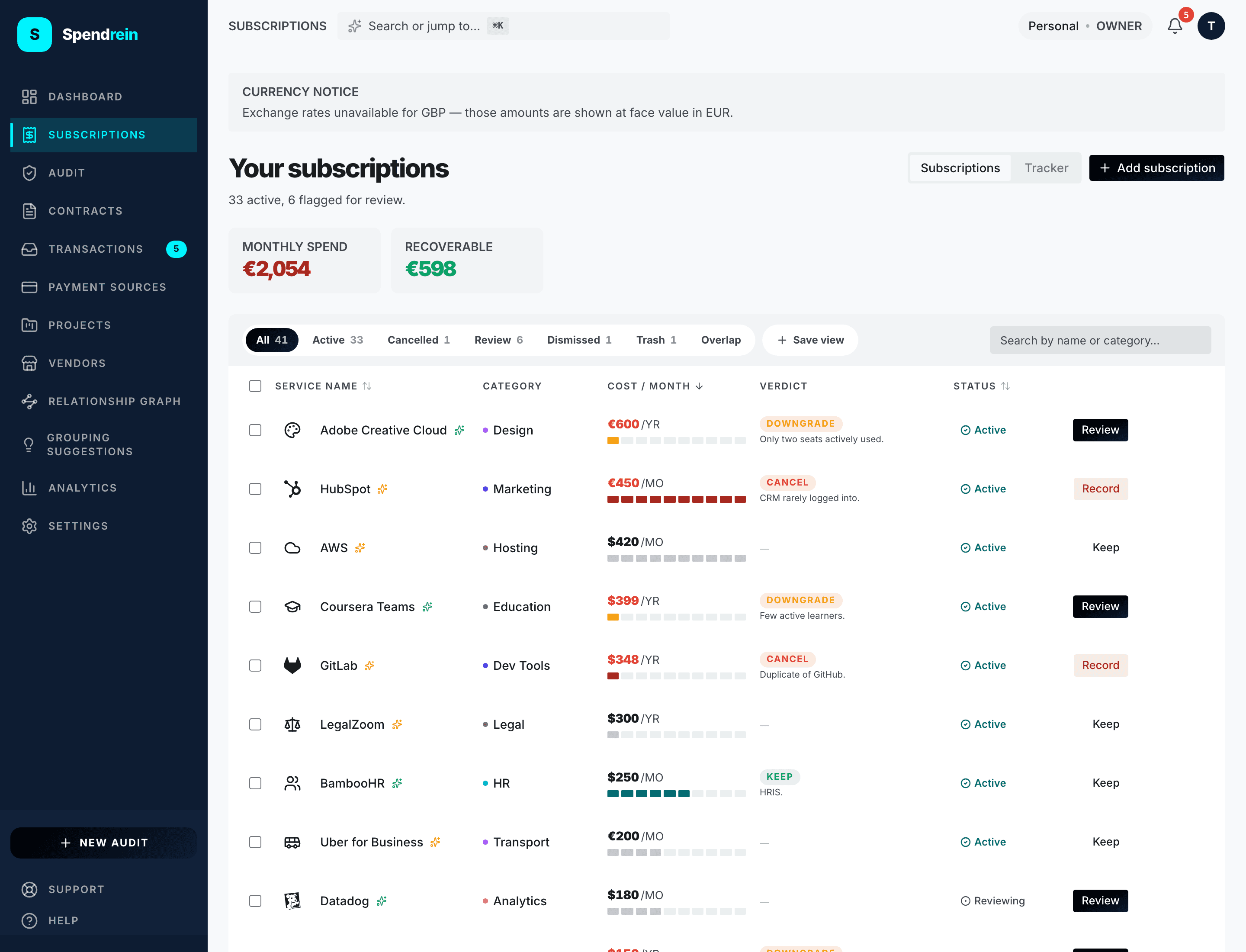
The subscriptions table is the full list of recurring charges Spendrein is tracking in your current workspace. Each row is one subscription — what you pay, how often, what the AI thinks you should do about it, and where it stands. Rows are sorted by amount, largest first, so the biggest charges sit at the top.
Everything here is scoped to your workspace and shown against your display currency. The hero at the top of the page carries two figures: Monthly spend (the monthly-normalized total of your active subscriptions) and Recoverable (the share of that spend tied to subscriptions the AI flagged to cancel or downgrade). When there's money to claw back, Monthly spend turns red — that's the only signal the red tone is sending.
Two different things: status vs. verdict
Every row carries two independent signals, and they answer different questions. Don't confuse them.
- Status (
user_status) is where you stand with the subscription — your state, which you control. - Verdict (
ai_recommendation) is what the AI suggests — advisory only. Spendrein never changes a status on its own.
A row can be active (your status) and carry a cancel verdict (the AI's
suggestion) at the same time. The status doesn't move until you move it.
Status — where the subscription stands
There are five status values, shown as a chip on each row:
| Status | Meaning |
|---|---|
| Active | A live charge you're paying. Counts toward Monthly spend. |
| Needs review | Flagged for your triage — confirm it's real and worth keeping, or send it elsewhere. |
| Cancelled | You've marked it cancelled. See "Marking one cancelled" for exactly what that does. |
| Dismissed | You decided this isn't a real subscription (a one-off, a duplicate). Hidden from the active list. |
| Trashed | Removed from your working list entirely. Reachable from the Trash filter. |
Dismissed and trashed rows share the same muted chip style as cancelled, but their labels and icons keep them distinct.
Verdict — what the AI suggests
The verdict badge is the same five-category scheme used on the dashboard and the top-charges panel, so the two pages always agree:
| Verdict | Meaning |
|---|---|
| Cancel | The AI thinks this subscription can be dropped. |
| Downgrade | A cheaper tier likely covers your usage. |
| Consolidate | Overlaps with another tool you already pay for. |
| Keep | Worth the spend — no action suggested. |
| Uncertain | Not enough signal to call it. Shown as a quiet dash, not counted as actionable. |
Cancel and downgrade verdicts are what feed the Recoverable figure. A row with an actionable verdict renders its amount in red, so the cost you could remove reads at a glance.
Verdicts are advice, not actions
A verdict never moves a subscription's status, cancels anything, or contacts a vendor. It's the AI surfacing an opinion. You decide whether to act.
Filtering the table
A row of filter tabs sits above the table:
| Tab | Shows |
|---|---|
| All | Every subscription except trashed. |
| Active | Live charges only. |
| Recoverable | Active subscriptions with a cancel or downgrade verdict. |
| Cancelled | Marked-cancelled rows. |
| Review | The needs_review triage queue. |
| Dismissed | Rows you said aren't real subscriptions. |
| Trash | Trashed rows. |
| Overlap | Consolidation opportunities across vendors (Operator plan). |
Recoverable is a verdict view, not a status — it's the same set the hero's
Recoverable figure and the dashboard count from. You can deep-link straight to
it: /subscriptions?filter=recoverable lands the table
pre-filtered to exactly those cancel/downgrade rows. The same works for the
other tabs (?filter=needs_review, ?filter=cancelled, and so on).
Saved views and overlap live on their own params
The ?filter= deep-link drives the static tabs above. Saved views and the
overlap report use a separate ?view= parameter, and the cancellation
tracker uses ?panel=cancellations. They don't collide.
Adding a subscription by hand
Not every recurring charge comes from a statement. Use Add subscription (top right) to record one yourself — a paid plan is required. You provide:
- Vendor name (required) — e.g.
Notion. - Monthly cost and currency — the currency defaults to whatever your current subscriptions mostly use.
- Billing cycle — monthly, quarterly, or annual.
- Category (optional) and a renewal date and notes (optional).
A manually added subscription behaves like any other row — it counts toward Monthly spend and shows up in your filters. It just carries no AI verdict unless the AI later has reason to weigh in.
The detail page
Click any row to open its detail page. It opens to the display name, the status chip, and the monthly amount, then lays out everything Spendrein knows:
- AI reasoning — the verdict, a confidence score, and the full explanation behind it.
- Linked contract — if this subscription is tied to a tracked contract, with a billing-delta comparison.
- Vendor spend chart and transaction history — every charge Spendrein has matched to this vendor.
- Reminders — renewal, trial-ending, and price-check nudges you can set.
- Benchmark — how your price compares to typical market rates, where data exists.
You can edit the details, mute renewal alerts, and — when the verdict is downgrade — record that you moved to a cheaper tier. The detail page is open to everyone tracking the subscription; only a few extras (benchmarks, negotiation scripts) ask for an Operator plan.
Marking one cancelled
From a row's expanded actions (or the detail page), Mark as cancelled flips
the status to cancelled. Here's exactly what that does — and doesn't do.
What 'marked cancelled' means
Marking a subscription cancelled updates its status inside Spendrein and starts watching your bank feed for charges that shouldn't be there anymore. Spendrein does not contact the vendor, send any email, or cancel anything on your behalf. The chip reads "Marked · watching" for a reason — it's tracking, not cancelling.
After you mark it, the row's action turns into a Marked · watching chip that links into the cancellation tracker. From then on, the existing charge-anomaly watchdog keeps an eye on incoming transactions: if the vendor charges you again after you marked it cancelled, you get a notification so you can chase it down. That's the protection — catching charges that slipped through, not driving the cancellation itself.
If you actually cancelled with the vendor and want to keep that record, that's fine — the status reflects your decision. But never read the chip as "Spendrein is cancelling this for me."
Contracts are different
Spendrein can compose and send a cancellation email for contracts that have a vendor contact — sent through your own email, not ours. That's a separate flow with its own tracking. See Cancellations for how that works. Marking a subscription cancelled, described above, never emails anyone.
Reading your insights
How to read every chart, KPI, and panel on the Spendrein analytics page — what each one means and which ones are actually actionable.
Transactions
The individual charges behind your subscriptions — how to review, link, dismiss, or promote them, and how the 30-day summary is calculated.