Reading your insights
How to read every chart, KPI, and panel on the Spendrein analytics page — what each one means and which ones are actually actionable.
The analytics page answers a different question than the dashboard. The dashboard tells you what to act on right now; analytics tells you how your spend is moving over time — the trend, the upcoming renewal pressure, where the money clusters, and how your rates compare to the market.
Everything here is computed from the subscriptions, contracts, and charges in your current workspace, normalized to a monthly figure and converted to your display currency. This page is read-only — it surfaces patterns, it never cancels or changes anything. To act on what you see, head to your subscriptions.
Before there's anything to read
On a workspace with no audits, no subscriptions, and no contracts, the page shows a single "Run your first audit to populate analytics" prompt. The charts below only appear once there's data to draw them from.
A note on currency and conversion
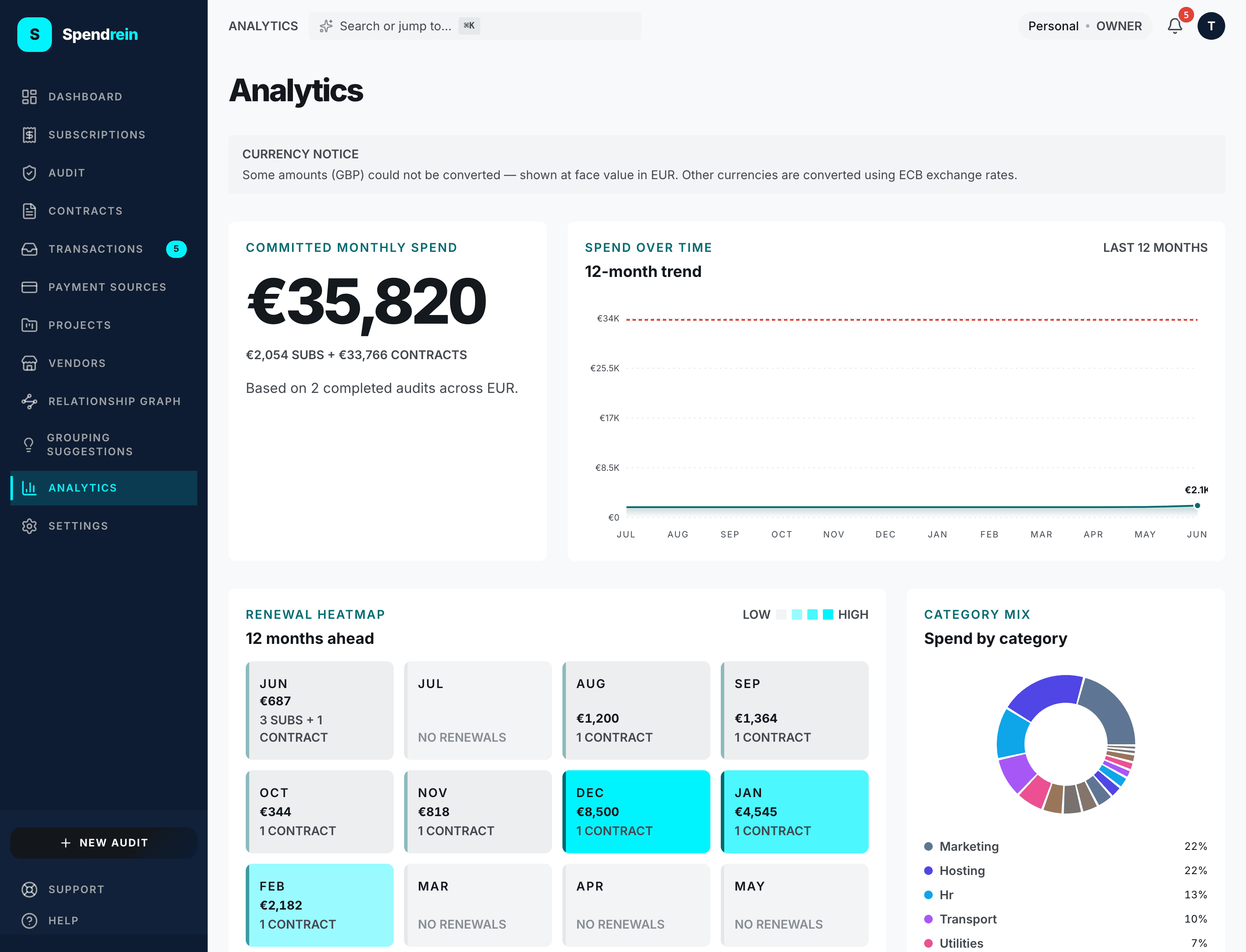
If your subscriptions or contracts span more than one currency, a notice sits just under the title. Amounts are converted to your display currency using ECB exchange rates. If a currency can't be converted — no rate available — those amounts are shown at face value and the notice names which currencies were affected, rather than silently dropping them.
Committed monthly spend
The headline number, top-left.
One shared definition
"Committed monthly spend" is the monthly-normalized total of your active subscriptions plus in-force contracts, in your display currency. A yearly plan is divided down to its monthly share. This is the same figure the dashboard shows — the two pages always agree.
- The big figure is the total. The metadata line underneath splits it into
… subs + … contractsso you can see which side dominates. - When a contract links to a subscription, the contract wins and the subscription is not double-counted.
- A small chip shows the year-over-year change when there's enough history — labeled "YoY subs" because it reflects subscription cashflow only. Up renders red, down renders green.
- The caption tells you what the numbers are based on: "Run your first audit…", "Based on 1 completed audit…", or "Based on N completed audits…".
This panel is informational — it's the orientation number for everything below.
Spend over time — 12-month trend
The area chart top-right. It traces your monthly subscription spend across the last 12 months, bucketed from real bank charges.
- The filled area is subscription spend. The peak month is marked with a dot and its value floated above it, so you can spot the high point without hovering.
- If you also have contracts, a dashed line overlays the chart showing
monthly contract commitment. Hover any month for the exact split —
… subsand… contracts. - A month with audit-flagged charges shows "Flagged charges detected" in the tooltip.
- If there are no real charges yet but you have active subscriptions, the chart shows a projected line from your subscription records instead of leaving the window empty.
Use it to read the shape of your spend — a steady climb, a one-off spike, a step up when a new tool landed. It shares its data with the dashboard's spend-over-time chart, so the two always match. Informational.
Renewal heatmap — 12 months ahead
A grid of the next 12 months, each cell shaded by how much renews that month.
- Cell shade is the share of the peak month — darker means a heavier renewal month. A legend runs Low → High in the header.
- Each cell shows the total renewing and a count:
N renewals, orN subs + M contractswhen both fall in the same month. - Subscription renewal dates are projected from the last charge plus the billing cycle; manual subscriptions fall back to their stored next-billing date. Contract renewals land in their expiration month.
- Months with nothing due read "No renewals."
This one is forward-looking and actionable — it's your early warning for which months carry the most renewal pressure, so a contract you want to cancel doesn't auto-renew before you notice.
Category mix — spend by category
A donut breaking your active subscription spend down by vendor category.
- Each slice is a category; hover for its exact amount and percentage of spend.
- The legend below lists the top five categories with their share.
- Until your first audit categorizes anything, it shows a "will appear after your first audit" placeholder.
Informational — it tells you where spend concentrates (e.g. is most of your bill in one category?).
Forecast — 3-month spend projection
Operator plan and up
The forecast and the savings card below appear only on the Operator plan or higher. On lower plans they're simply absent — there's no locked placeholder.
A stacked bar chart projecting the next three months of spend, split into subscriptions and contracts.
- Bars stack subscription spend and contract spend per month.
- A red dot marks a month with a contract renewal spike, and the renewals are listed below the chart with their amount.
- If any amounts couldn't be converted, a note says they were excluded from the projection.
Actionable as a heads-up — it tells you whether a big contract renewal is about to land.
Savings
A compact KPI card summarizing what you've saved.
- The headline is your ongoing monthly savings — the monthly amount from savings still in effect.
- Below it, total lifetime saved since your first recorded saving.
- Before you've acted on anything, it reads "Act on recommendations to start saving."
Informational — it's the scoreboard for actions you've already taken.
Audit funnel — from scan to savings
Four stages read left to right, each with a proportional bar:
| Stage | What it counts |
|---|---|
| Audits run | Completed audits in this workspace. |
| Subscriptions found | Subscriptions surfaced across those audits. |
| Actioned | Cancellation actions you've started. |
| Recovered | Monthly spend from subscriptions now marked cancelled. |
Before any audit has run, it shows a "No audits run yet" placeholder. Informational — it's a summary of how far your spend review has progressed.
Top vendors by spend
Your five biggest active vendors by monthly cost, largest first.
- Each row shows the vendor, its category, and the monthly amount.
- A bar under each row scales against the top vendor, so you can see how much the largest one dominates.
Informational — a quick "where the money goes" read. To act on any of these, open them in your subscriptions.
Benchmark — how your rates compare
Operator plan and up
The benchmark panel needs the Operator plan. On lower plans this slot shows an "Upgrade to Operator" prompt instead of the comparison.
For vendors where Spendrein has market price data, this panel shows whether you're paying above, within, or below the typical range.
- Each row draws a track with the market low–high band filled in, a peer-typical marker, and a dot for your actual cost.
- The dot is colored by position: above the band is red, within is neutral, below is green. A label spells it out: "Above / Within / Below the band."
- Only vendors with matching benchmark data appear — if none match, the panel is hidden.
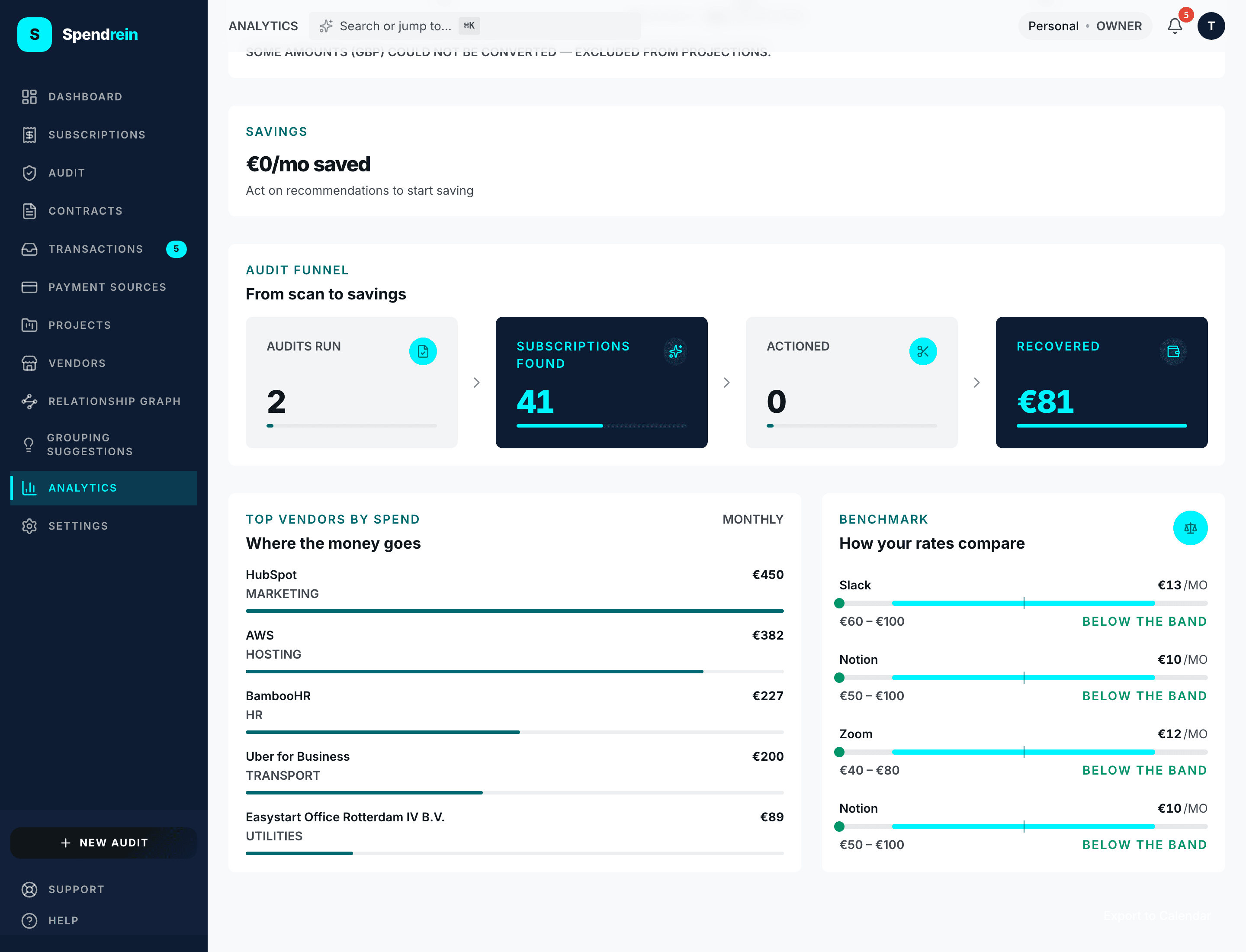
This one is actionable: a vendor sitting above the band is a candidate to renegotiate or downgrade.
Insight footer
A dark band at the bottom of the page with a one-line, computed observation — for example, "Your software spend grew 12% compared to the same month last year." It's derived from your real charge history (year-over-year when there's enough data, otherwise across your available window).
If there isn't enough signal to say something true, the whole band is hidden — Spendrein never fills it with placeholder copy. A "Run new audit" button sits on the right.
What's informational vs. actionable
Most of this page is informational — committed spend, the 12-month trend, category mix, top vendors, the audit funnel, and savings tell you what's happening. The renewal heatmap, the forecast, and the benchmark panel are the ones that point at something to do: an upcoming renewal to catch, or a rate that's out of line. Acting on any of it happens over in your subscriptions — this page only reports.
Reading your dashboard
What every panel, figure, status, and color on the Spendrein dashboard means — top to bottom.
Your subscriptions
How to read the subscriptions table — the statuses, the AI verdicts, filtering, adding a subscription by hand, the detail page, and what "marked cancelled" really does.