Running an audit
What a Spendrein audit does, which statement formats it accepts, how long it takes, the statuses it moves through, and the five recommendation categories it assigns.
An audit is a scan of a bank or card statement you upload. Spendrein reads the transactions, groups the ones that repeat, and identifies which of them are recurring subscription charges. Each subscription it finds gets a plain recommendation — keep, cancel, downgrade, or consolidate — or is left uncertain when the signal is too thin to call. Either way, the answer to "what am I paying for, and what should I do about it?" is sitting in front of you when the scan finishes.
An audit only reads. It never contacts a vendor, never cancels anything, and never changes a charge. Everything it produces flows into your subscriptions list and your dashboard for your current workspace.
Your first audit is free
Every account can run an audit for free. The free tier shows a preview of the results (see Free preview vs. full results below); upgrading reveals the full list and turns on ongoing monitoring.
Supported file formats
Upload the statement export your bank gives you. Spendrein accepts up to 5 files per audit, 10 MB each, in these formats:
| Format | File extensions | Notes |
|---|---|---|
| CAMT.053 | .xml | ISO 20022 bank statement. Prefer this if your bank offers it — it's the cleanest, most structured export. |
| MT940 | .sta .mt940 .940 | The classic SWIFT statement format most European banks export. |
| OFX / QFX | .ofx .qfx | Open Financial Exchange, common in personal-finance tools. |
| CSV | .csv .txt | Comma-delimited transaction export from most banks. |
Format is detected, not just guessed from the name
Spendrein routes each file to the right parser by inspecting its contents,
not only its extension — so a CAMT.053 file saved with a .txt name still
lands on the correct parser. If a file doesn't match any supported format,
the audit reports it as unsupported rather than parsing it incorrectly.
If a specific bank's export isn't parsing cleanly, send a sample to support and we'll add it to the importers we test against.
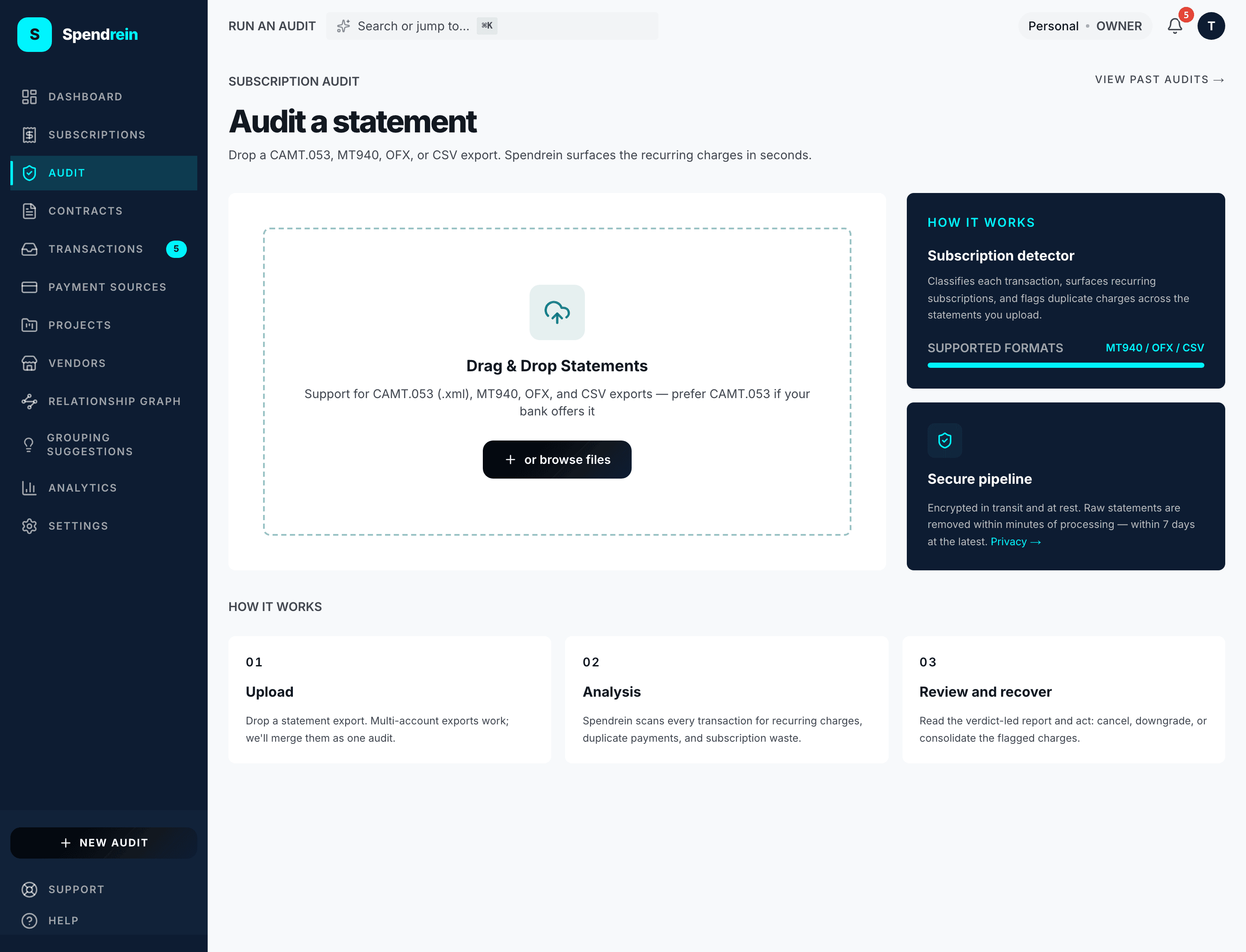
What a scan actually does
Once you upload, the audit runs in the background through a few steps:
- Parse every file into individual transactions.
- Group transactions that look like the same recurring charge (same merchant, regular spacing).
- Classify each group: is it a real subscription, and if so, what vendor, plan, and billing cycle?
- Recommend an action for each subscription — keep, cancel, downgrade, or consolidate — or leave it uncertain when the signal is too thin.
The classification and recommendation steps are where the AI does its work. A group with irregular spacing, only a couple of far-apart charges, or wildly varying amounts is left uncertain rather than treated as a confirmed subscription — those are usually one-off purchases or transfers, not something you're subscribed to.
How long it takes
Usually under a minute. The scan runs in the background, so you can leave the page and come back — results appear as soon as it finishes. If an audit is still running after five minutes, refresh the page; the result will be there if processing finished while you were away. If it isn't, contact support.
Audit statuses
An audit moves through a short lifecycle. You'll see the current status on the audit history page and on the audit itself:
| Status | What it means |
|---|---|
| Queued | The audit is accepted and waiting for the background worker to pick it up. |
| Processing | The worker is parsing, grouping, and classifying your statements. |
| Complete | The scan finished and your subscriptions are ready to view. |
| Failed | The scan couldn't produce results — usually no transactions were found in the files, or none of them looked recurring. The audit explains which case applies. |
Failed isn't a dead end
A failed audit most often means the statement had nothing recurring in it, or the file couldn't be read as a statement. Check that you uploaded a transaction export (not a summary or a marketing PDF) in one of the supported formats, then try again.
The five recommendation categories
When a scan completes, every subscription it found carries one of five recommendations. These are the same categories you'll see across the dashboard and the subscriptions table:
| Category | Meaning |
|---|---|
| Keep | High confidence this is a real subscription worth retaining — no action suggested. |
| Cancel | The AI thinks this one can be dropped. |
| Downgrade | A cheaper tier likely covers your usage. |
| Consolidate | Overlaps with another tool you already pay for. |
| Uncertain | Not enough signal to call it — an ambiguous charge, an unrecognized vendor, or something that may not be a subscription at all. Carries no verdict badge (it shows as a dash), and is not counted as an actionable recommendation. |
Cancel, downgrade, and consolidate are the actionable verdicts — the ones that represent money you could claw back. Keep and uncertain are deliberately left out of the "what to act on" counts on your dashboard, because neither is work to do.
Free preview vs. full results
On the free tier, a completed audit shows a preview: the top few subscriptions by monthly cost, with the rest of the list blurred behind a count. The headline spend figure and the recommendation breakdown are still visible, so you get the shape of the result before deciding to upgrade.
Upgrading to a paid plan reveals the full subscription list and unlocks ongoing monitoring — re-scan reminders, renewal and price-change alerts, and cancellation tracking. See subscriptions for what happens to your audit results once they're in your workspace.