Vendors
The merchants you pay, as named entities — how vendors are created, categorized, and kept tidy across subscriptions, contracts, and transactions.
A vendor is a merchant you pay — Adobe, AWS, your landlord, a SaaS tool — held as a named entity in your workspace. Vendors group the same payee across your subscriptions, contracts, and transactions, so each one is a single, consistent name rather than three slightly different strings scattered across your data.
Think of vendors as the identity layer: the clean list of who you pay. What each one costs and how they connect to the rest of your spend lives on the dashboard and the relationship graph; the vendors page itself is about keeping the roster accurate.
You start with a head start
Spendrein seeds your vendor list automatically from the merchants your audits already found, so the page isn't empty on day one. You can add, rename, and recategorize from there.
The vendors list
The page is a grid of vendor cards, sorted by name. Each card shows the vendor's name, its category, an optional website, and a status badge (Active or Archived). Archived vendors are hidden from the list by default. Click any card to open its detail page.
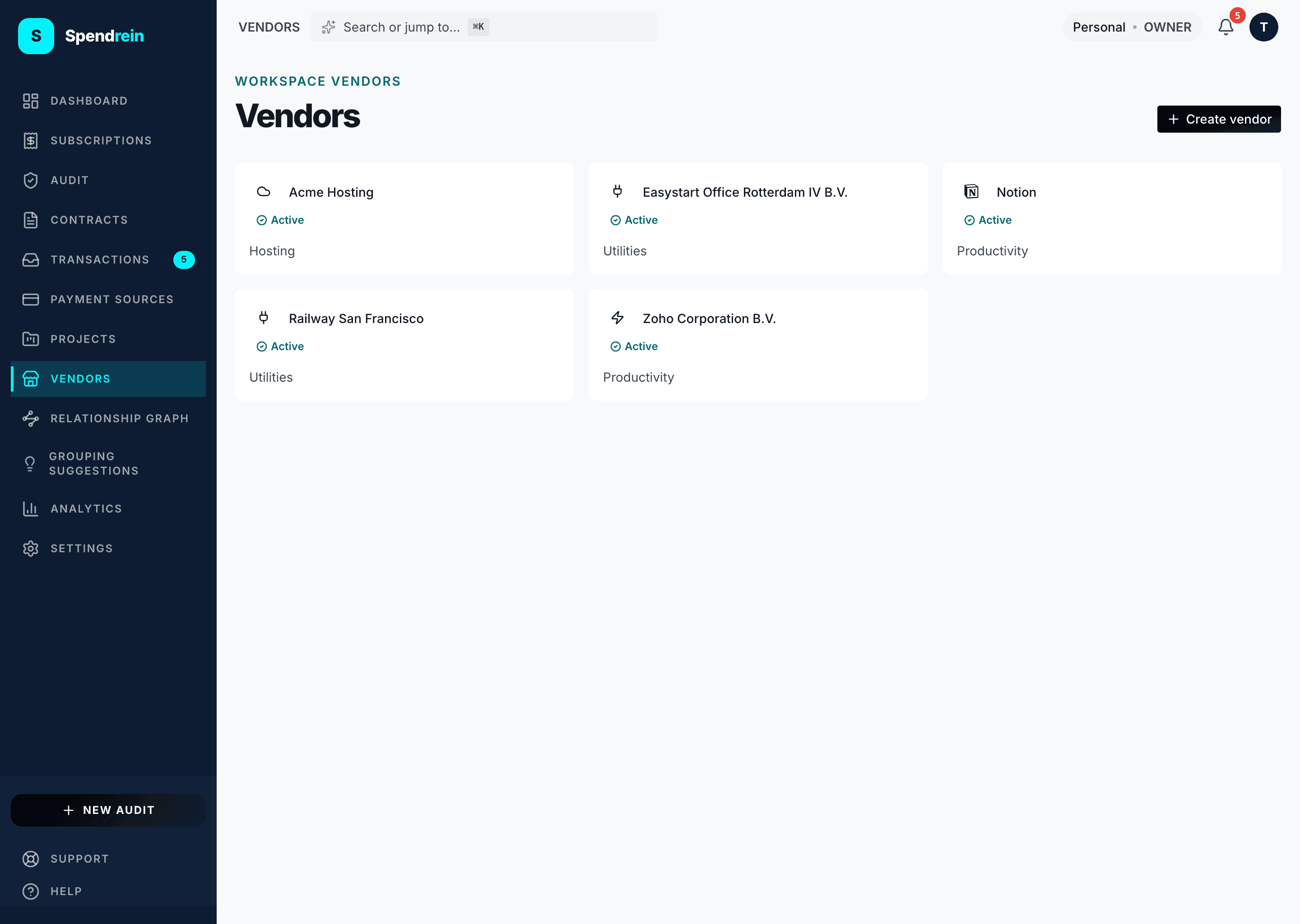
To add one, use Create vendor and fill in:
- Name (required) — must be unique within the workspace.
- Category (optional) — one of 18 categories (Productivity, Dev tools, Communication, Design, Analytics, Security, Storage, Finance, Marketing, HR, Transport, Media, Hosting, Education, Legal, Insurance, Utilities, Other), or left Uncategorized.
- Website (optional).
- Notes (optional).
The vendor detail page
Opening a vendor shows its identity — name, status, category, website, and any notes you've added — plus an actions menu to edit details, archive, or delete it.
What the detail page is — and isn't
The vendor page records who a vendor is. It does not total that vendor's spend on the page itself; the linked subscriptions, contracts, and transactions stay attached to the vendor but are surfaced through your dashboard and the relationship graph rather than rolled up here.
Archiving vs. deleting
Both remove a vendor from your working list, but they're different:
- Archive hides the vendor from the default list while keeping the record. It's the reversible option — use it when you've simply stopped using a vendor.
- Delete permanently removes the vendor. Your linked subscriptions, contracts, and transactions are not affected — only the vendor name record goes away. This can't be undone, so the app nudges you to archive instead if you only want to hide it.
Who can do what
| Capability | Owner | Admin | Member | Viewer |
|---|---|---|---|---|
| View vendors | ✓ | ✓ | ✓ | ✓ |
| Create or edit a vendor | ✓ | ✓ | ✓ | — |
| Archive a vendor | ✓ | ✓ | — | — |
| Delete a vendor | ✓ | ✓ | — | — |
Members keep the roster tidy (create and edit); archiving and deleting are reserved for Owners and Admins.
Tracking contracts
Track commercial contract renewals — leases, vendor agreements, insurance, SaaS — with renewal-window reminders so a notice deadline never slips past you.
Projects
Cost buckets that roll up spend across subscriptions, contracts, transactions, and vendors — so you can see what a client, product line, or initiative actually costs.