Plans & billing
The Free, Operator, and Business tiers, what each one unlocks, how to upgrade, downgrade, or cancel, and where to find your invoices.
Spendrein has three plans: Free, Operator, and Business. Every account starts on Free with a real audit — you don't hand over a card to try it. Paid tiers add ongoing monitoring, contract tracking, and the team-workspace surface on top of that.
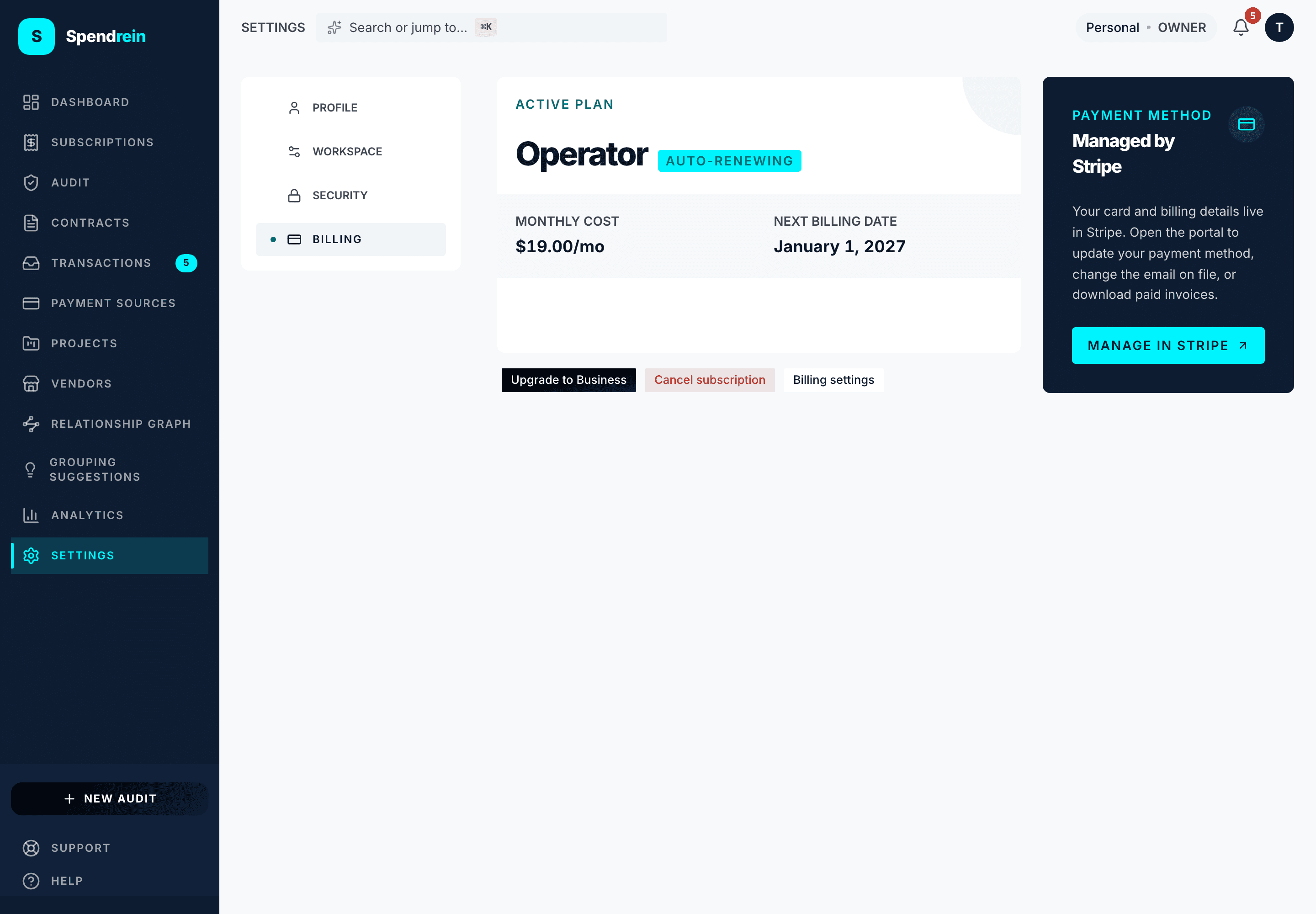
You manage all of it in one place: Settings → Billing. Upgrades run through Stripe Checkout; downgrades and cancellations run through the Stripe customer portal; and every invoice you've ever been charged is listed there with a downloadable receipt.
Free users are never auto-enrolled
There is no trial that quietly converts. Spendrein does not move you onto a paid plan on its own — you stay on Free until you explicitly upgrade. Nothing is charged until you complete checkout.
What each plan unlocks
The table below is the actual capability gate the app enforces — the same flags that decide whether a feature is available to you in the product.
| Capability | Free | Operator | Business |
|---|---|---|---|
| Run an audit + bank-feed watchdog | First audit + watchdog on what it found | Unlimited audits, watchdog on every charge | Unlimited audits, watchdog on every charge |
Contract tracking (contracts) — upload, edit, renew, email ingestion | — | ✓ | ✓ |
Renewal alerts (renewalAlerts) | — | ✓ | ✓ |
Negotiation scripts (negotiationScripts) | — | ✓ | ✓ |
Benchmark pricing (benchmarkPricing) | — | ✓ | ✓ |
Savings intelligence (savingsIntelligence) — savings-ledger KPI on the dashboard + analytics | — | ✓ | ✓ |
| MCP / AI agent surface (query tools) | ✓ | ✓ | ✓ |
Team workspace (teamWorkspace) — promote + invite teammates | — | — | ✓ |
A few things worth calling out:
- Free is genuinely useful, not a locked teaser. You get one full audit (up to 24 months of statement history) and an indefinite watchdog on the subscriptions that audit found — so you keep getting flagged when one of them changes.
- The team workspace is Business-only. Operator does not inherit it. Promoting your personal workspace, inviting teammates, roles, the activity log, and CSV export all live on the Business tier. See Workspaces & seats.
- Read-only AI access is on every plan. Any tier can connect an AI assistant to query audits and look up vendor benchmarks; the cancellation and negotiation write workflows are the paid grant.
Operator vs. Business in one line
Operator is built for the one person accountable for the spend. Business is the same toolset plus a team workspace for a finance team — included seats, roles, invitations, an activity log, and ownership transfer.
Upgrading
From Settings → Billing, pick the plan you want and continue to Stripe Checkout. You enter payment details on Stripe's hosted page, and the moment checkout completes you're on the new plan — your full reports and the tier's features unlock right away.
If you're already on a paid plan and moving up a tier (Operator → Business), the change applies immediately so the new features are available the same day.
Downgrading or cancelling
Downgrades and cancellations go through the Stripe customer portal, opened from the active-plan card in Settings → Billing.
The important part is when it takes effect:
- Your plan changes at the end of the current billing period, and you keep full access to everything your current plan includes until then. Nothing is cut off mid-period.
- A scheduled cancellation is reversible — if you change your mind before the period ends, you can resume the plan from the same billing card and it simply keeps renewing.
Downgrading off Business with a team workspace
If you own a team workspace and downgrade off Business, the downgrade dialog warns you first: once the plan lapses, the workspace enters a 14-day read-only grace period for everyone but the Owner before access tightens further. Read Workspaces & seats before you do this so no teammate loses access by surprise.
Seats (Business)
Business includes 5 seats. The Owner can add more from the seats panel in Settings → Billing, up to 20, at an additional per-seat rate. Owner, Admin, Member, and Viewer all count toward the seat total, and so do pending invitations until they're accepted or revoked. The full role and seat model lives in Workspaces & seats.
Invoices & receipts
Every charge is listed under Settings → Billing in the billing-history table. Each row links to a downloadable PDF receipt served directly from Stripe — that's your record for expenses or accounting. The list is pulled live from Stripe at page load, so it always reflects what was actually charged.
A $0 invoice (for example, a fully-discounted plan) won't generate a
separate emailed receipt, but it still appears in the billing history with
its PDF.
Where to go next
Workspaces & roles
Personal vs team workspaces, the four roles, seats and invitations, transferring ownership, and what happens to a team workspace when billing fails.
Connect an AI assistant (MCP)
Connect Claude, ChatGPT, Cursor, and other MCP clients to Spendrein — issue a credential, the tool reference, worked examples, security, rate limits, and errors.