Transactions
The individual charges behind your subscriptions — how to review, link, dismiss, or promote them, and how the 30-day summary is calculated.
A transaction is a single charge that Spendrein read from a bank or card statement during an audit. Where a subscription is the recurring thing you pay for, a transaction is one actual line on your statement — a date, an amount, a currency, and the raw description your bank recorded.
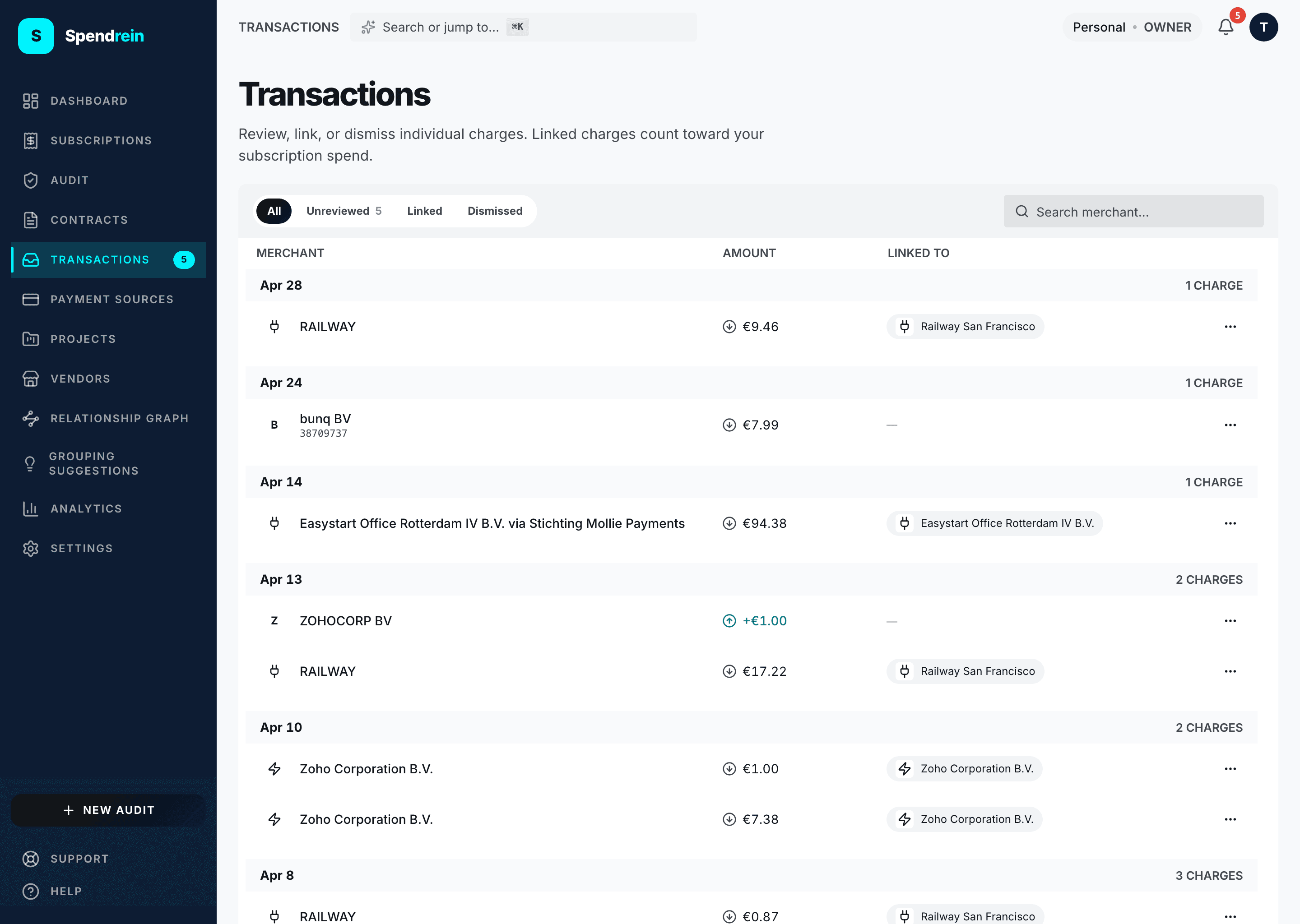
The transactions page is where you reconcile those individual charges against your subscriptions: review, link, or dismiss each one. Linked charges count toward your subscription spend, so this is how you keep the numbers on the rest of your dashboard honest.
Where transactions come from
You don't create transactions by hand — they're parsed from the statements you upload. Each charge is stored in its original currency at face value (it is not converted), tied to the audit that produced it and, once you link it, to a subscription.
The last-30-days summary
At the top of the page, four tiles summarize the trailing 30 days. They only appear once there's at least one charge in that window:
| Tile | What it shows |
|---|---|
| Spent · last 30d | Total of debits in the window, converted to your display currency, with the charge count beneath. |
| Refunds & credits | Total money in (credits) over the window — "Money in" when there's any, "None this window" otherwise. |
| Biggest charge | Your single largest debit in the window. |
| Linked | What share of the window's charges you've linked to a subscription — e.g. "18 of 24". |
Two currencies, on purpose
The summary tiles convert everything to your display currency so the totals add up. The rows in the table below stay in each charge's native currency — a €49 charge shows as €49, not a converted figure. So a mixed-currency workspace will show native amounts per row and one consolidated figure up top.
Filtering and finding charges
Four filters sit above the table:
- All — every charge.
- Unreviewed — charges not yet linked to a subscription and not dismissed. This one carries a count badge so you always know how much is left to triage.
- Linked — charges already attached to a subscription.
- Dismissed — charges you've set aside.
The search box filters by merchant name only (it matches the normalized merchant, case-insensitive). There's no category, amount, or date filter — the table is always sorted newest-first and grouped under sticky date headers ("June 5, 2025 · 3 charges").
Acting on a charge
Open any row's menu to bring up its detail panel. What you can do depends on the charge's state:
Link it to a subscription
Search your subscriptions and pick the one this charge belongs to. Tick "Also link similar charges from this merchant" to attach every other unreviewed charge with the same merchant and currency in one go.
A guard against over-linking
Bulk-linking is deliberately skipped for generic merchants (things that normalize to "transfer", "unknown", or "fee"), so you don't accidentally sweep a pile of unrelated charges onto one subscription.
When you link a charge, Spendrein also checks it against that subscription's baseline. If the amount deviates sharply from what's expected, it records a charge anomaly and notifies you — the same bank-feed watchdog that backs the rest of the product.
Promote it to a new subscription
If a charge represents something you're not yet tracking, promote it: give it a display name, a category, and a billing cycle (monthly, quarterly, or annual), and Spendrein creates a subscription from it — automatically linking the original charge and any similar ones it finds.
Dismiss or restore it
Dismiss a charge to take it out of your review queue (a one-off purchase, a transfer, something that isn't a subscription). Dismissing never deletes anything — a dismissed charge moves to the Dismissed filter and can be restored at any time.
Who can do what
| Capability | Owner | Admin | Member | Viewer |
|---|---|---|---|---|
| View transactions | ✓ | ✓ | ✓ | — |
| Link, dismiss, restore, promote | ✓ | ✓ | ✓ | — |
Viewing and editing transactions both require workspace membership at Member or above; Viewers don't see transaction data.
Your subscriptions
How to read the subscriptions table — the statuses, the AI verdicts, filtering, adding a subscription by hand, the detail page, and what "marked cancelled" really does.
Tracking contracts
Track commercial contract renewals — leases, vendor agreements, insurance, SaaS — with renewal-window reminders so a notice deadline never slips past you.